A worked example · October 10, 2026
Make printable flashcards from Excel or Google Sheets
Have a vocabulary list in a spreadsheet? Keep each phrase and translation on the same row, choose which columns become the front and back, and generate a printable PDF. You do not need to build a Word mail merge or rearrange the answers for double-sided printing.
By Printable Flashcard Maker. This simulated language-learning task uses eight Spanish travel phrases. The screenshots show the actual maker, and the sample PDF was generated from this list. Use a desktop browser for the editor; this guide and its downloads also work on mobile.
1. Put one front/back pair on each row
The example has a Topic column as well as Front and Back. You can keep this extra column in your source list: the maker imports only the two columns you select. Topic labels will not become card content or groups.
| A · Topic | B · Front | C · Back |
|---|---|---|
| Greetings | Hola | Hello |
| Greetings | Buenos días | Good morning |
| Politeness | Por favor | Please |
| Politeness | Gracias | Thank you |
| Travel | ¿Dónde está la estación? | Where is the station? |
| Travel | Un billete, por favor | One ticket, please |
| Shopping | ¿Cuánto cuesta? | How much does it cost? |
| Help | No entiendo | I do not understand |
Download the 8-card CSV example or the equivalent tab-separated TSV example. Open either in your spreadsheet app to replace the rows with your own list. If asked, choose UTF-8 and the matching separator: comma for CSV, tab for TSV.
- Keep a question and its answer in the same row. Sort the whole range, not one column on its own.
- Use one cell per face. Avoid merged cells, title rows and totals inside the selected range.
- For this first import, use text-only cells without embedded tabs or line breaks. The maker imports text, not spreadsheet styles, formulas as editable formulas, or cell images.
2. Copy the cells, not a picture of the sheet
- In Excel or Google Sheets, select A1:C9 for this example. For your own list, select only the rectangular range you want to import.
- Copy with Ctrl+C on Windows or Command+C on Mac.
- Open Printable Flashcard Maker. If you have existing work, download an editable backup using Save cards first. Use New cards after saving if you want a separate deck.
- Click Paste / import and paste into Or paste your table. Copying spreadsheet cells normally separates columns with tabs; begin with Separator: Detect.
The pasted text may not look neatly aligned in the text box. Use the mapped preview below it to judge the result. If all columns become one, select Tab (TSV). If you copied from a PDF or web page rather than spreadsheet cells, prepare a proper table first instead of guessing where spaces should split.
For a simple Front / Back list copied from columns A and B, map Column 1 to Front and Column 2 to Back. Column numbers refer to the pasted range, not the original worksheet letters. If you copy only B:C from this example, those become import columns 1 and 2.
Alternatively: export a CSV or TSV file
Use this route if you want to keep a reusable import file. The maker accepts CSV, TSV and text files; it cannot open an XLSX workbook or connect directly to a Google Sheets URL.
From Excel
Keep your original workbook. Export or save a separate copy of the worksheet as CSV UTF-8 (Comma delimited), where available. Menu names vary by Excel version. CSV saves cell values from one sheet, not the complete workbook or its formatting. If your regional settings produce semicolons, use the copy-and-paste route or export tab-delimited text; the maker's explicit separator choices are comma and tab.
From Google Sheets
Select the worksheet, then use File → Download → Comma-separated values (.csv) or Tab-separated values (.tsv). These download the current sheet. In the maker, open Paste / import and choose the file under CSV / TSV file · up to 10 MB.
Keep commas inside a single answer
Let the spreadsheet app quote CSV fields. Our sample contains this record:
Travel,"Un billete, por favor","One ticket, please"The quoted commas belong inside the phrase and answer; this is still three columns. Do not split the file by every comma or replace all commas with another character. For accents such as días and estación, export UTF-8. If the preview already shows corrupted characters, return to the original workbook and re-export it.
3. Map the columns before adding the cards
For the complete three-column sample, use:
| Control | Value | Why |
|---|---|---|
| Front column | Column 2 | Spanish phrases, not topic labels. |
| Back column | Column 3 | The matching English translations. |
| First row is a header (not a card) | Checked | Skips Topic / Front / Back. |
| Import action | Append to current cards | Adds this set without replacing existing cards. |
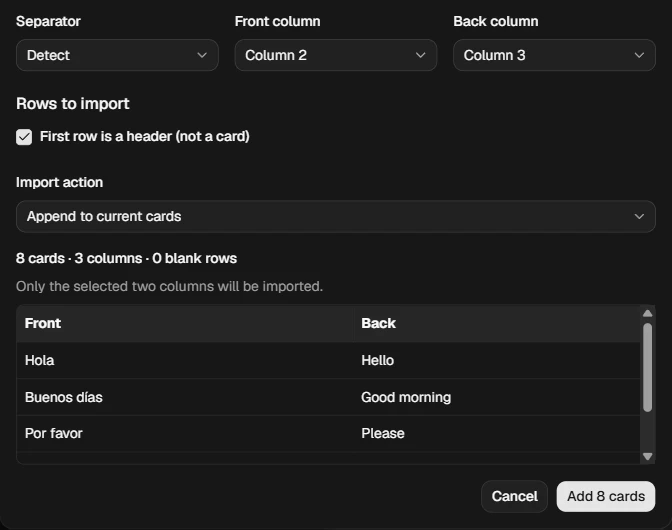
Read the first five mapped cards: Hola → Hello, Buenos días → Good morning. Check the count, then click Add 8 cards. Review the remaining pairs in the editor too, especially the phrase containing a comma. On an empty draft the result is eight cards; appending to an existing draft increases its total by eight.
Replace all current cards is a separate choice. When there are existing cards, it requires confirmation and removes their text and images while retaining print settings. To avoid accidental loss, keep Append unless you deliberately want to replace the deck.
4. Turn the imported list into a printable PDF
- Open Print settings beside Prepare print file.
- For our sample, choose A4, Double-sided, Fit a grid to paper, 2 columns × 4 rows, and 16 pt text.
- Under More print settings, use Portrait, Long edge, 10 mm margin and 2 mm gap. Apply the settings.
- With Cards to print: All cards, use Download PDF, or Prepare print file → Open for printing · 8 cards.
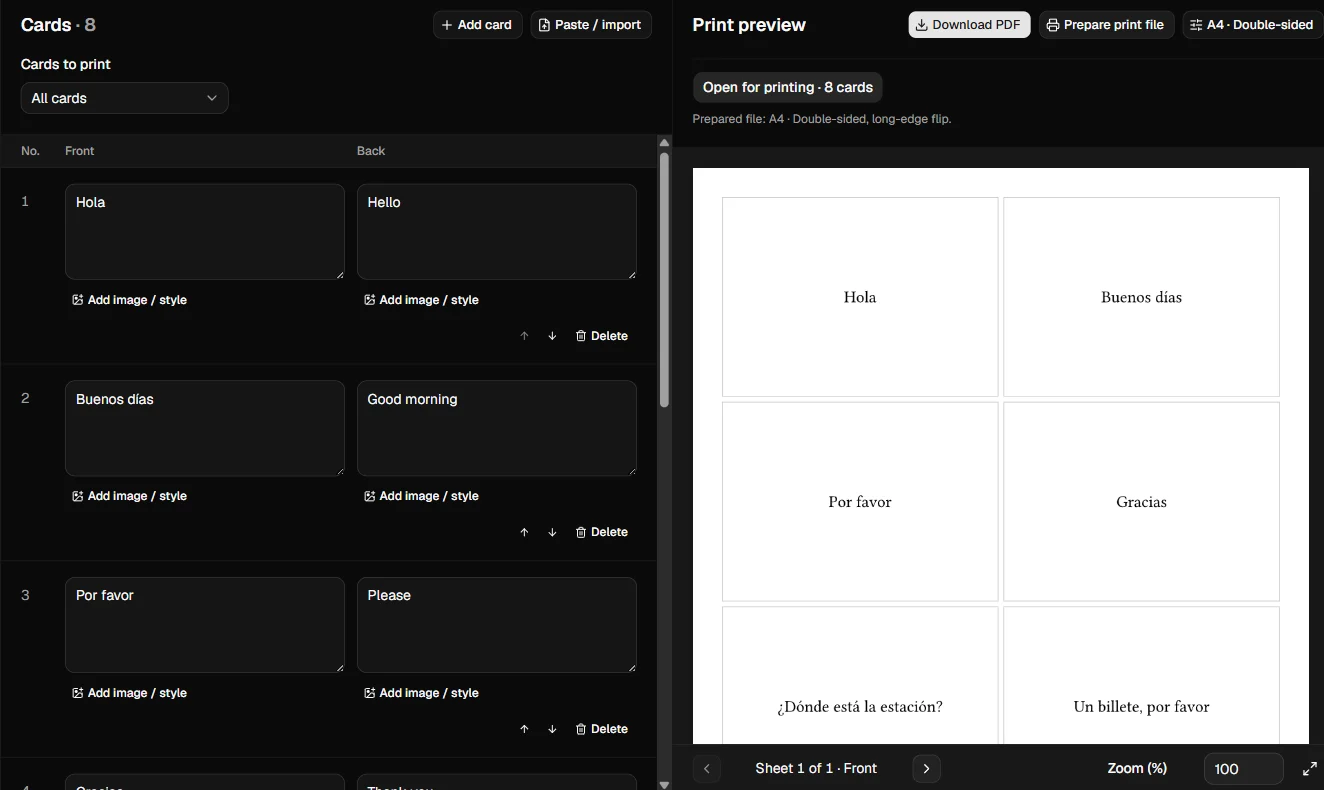
Open the generated example PDF · A4, 8 cards, 2 pages. Page 1 contains the phrases; page 2 contains their translations. The topic column and header are omitted. This is a digital output example, not a physical printer alignment test.
The back page is arranged for a long-edge turn. Keep both pages in order, print one PDF page per side at 100% / Actual size, and match the paper and flip settings. For a full explanation of pairing and printer settings, follow the double-sided flashcard printing guide.
If you use Letter paper, select US Letter and generate a new PDF; do not shrink the supplied A4 example to fit. Without duplex printing, choose Fold-over and generate a fold-and-glue layout instead.
Fix the import problem you see
| Symptom | What to check |
|---|---|
| Nine cards instead of eight. | Check First row is a header. Without it, the header becomes a card. |
| Fronts say Greetings or Travel. | Map Front to Column 2 and Back to Column 3 for the full sample. The defaults assume a two-column list. |
| The preview has only one column. | Choose Tab for pasted spreadsheet cells or Comma for CSV. For semicolon files, re-export or copy the cells instead. |
| An answer is split into extra columns. | Check CSV quoting around commas; re-export from your spreadsheet. The sample's “One ticket, please” must stay in one cell. |
| Accents look wrong. | Use UTF-8 export or direct cell copy. Changing the font cannot repair already-corrupted text. |
| Too many blank cards. | Select only the used range. Entirely blank rows are skipped by default; a row with a topic but empty selected faces is not an entirely blank source row, so remove it from the source. |
| Fronts and backs do not match in the editor. | Repair source rows and mapping. A printer flip setting cannot fix mismatched data. |
| Backs are correct in the editor but absent from the PDF. | Single-sided prints fronts only. Choose Double-sided or Fold-over, then generate a new PDF. |
| Cards appear twice. | Append was probably used more than once. Review the current deck before reimporting; save a backup before replacing it. |
Keep an editable copy
The PDF is for printing. Keep the original spreadsheet for editing the text, and use Save cards to download a ZIP with the maker's card content, images and settings. Restore that ZIP through Open cards. Importing a spreadsheet does not create a live connection: later sheet edits require another import.
If the maker reports that changes are not retained locally, download your work before closing the tab rather than relying on browser storage.
Have your own list ready? Open the printable flashcard maker, paste a small sample first, and check its pairs before importing the rest.