A practical example · October 11, 2026
Make task cards for small-group reading discussion
If your small group has read the same story, short task cards can prompt students to talk about it without turning the activity into a written-response worksheet. This guide shows how to prepare six of your own discussion prompts as one-sided cards.
The six reading prompts below are original illustrative exercises, not a real classroom trial, a complete lesson, an assessment or standards-aligned curriculum. The teacher supplies the story, selects the prompts and facilitates the discussion.
1. Choose a cards-only activity
Use this setup after students have read a shared story. Put the cards at the group's table, let a student choose one, and have group members take turns explaining their ideas and pointing to a detail in the text. Listen, ask follow-up questions and invite another interpretation. There is no expectation that students fill in boxes or match a printed answer key.
Language arts teacher Erin Beers describes small-group discussion and conversation task cards used instead of written responses. Her article also describes Scoot activities with answer documents; those need a different setup. For this guide, the finished item is a set of discussion prompts, and you supply the story and teaching context.
2. Prepare your six prompts
Choose prompts students can discuss from their shared reading. Keep each card to one short task and check that the story gives them something useful to refer to. Replace questions about character change, mood or conflicting viewpoints if they do not fit the text. Students can offer different interpretations; the teacher facilitates rather than relying on one fixed answer.
The original illustrative example uses these six fronts. Every back is blank:
| Card | Prompt |
|---|---|
| 1 | Choose a character. Which decision would you question? |
| 2 | Find one detail that makes the setting feel real. |
| 3 | What changes in the main character? Point to a scene. |
| 4 | Pick a word with a strong mood. Explain your choice. |
| 5 | Compare two characters. What do they disagree about? |
| 6 | Suggest another ending. Which earlier clue supports it? |
Download the six-prompt CSV example. This is editable text input, not a Word, PowerPoint or Google Slides template. The numbers are written into the prompt text; they are not generated by a numbering feature.
front,back
1. Choose a character. Which decision would you question?,
2. Find one detail that makes the setting feel real.,
3. What changes in the main character? Point to a scene.,
4. Pick a word with a strong mood. Explain your choice.,
5. Compare two characters. What do they disagree about?,
6. Suggest another ending. Which earlier clue supports it?,
3. Import and check the cards
- Open the printable flashcard maker in a desktop browser. If you have a draft to keep, choose Save cards and confirm the editable ZIP backup has downloaded before starting a separate practice deck with New cards.
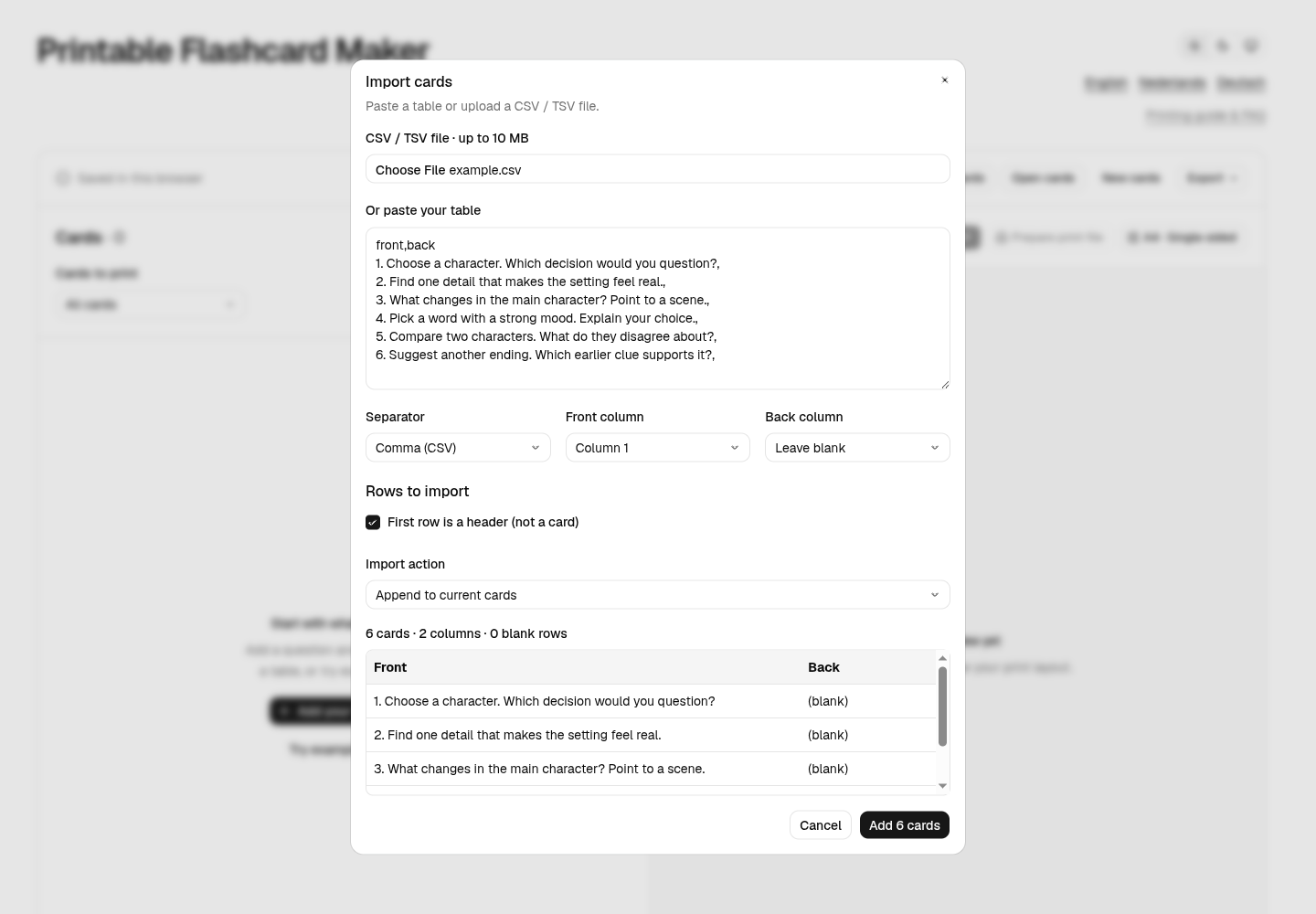
- Open Paste / import and upload the example under CSV / TSV file, or paste its rows into Or paste your table.
- If needed, choose Comma (CSV). Map Front column to Column 1, Back column to Leave blank, and check First row is a header (not a card).
- Check the mapped preview for the expected first prompt and blank backs, then choose Add 6 cards in the empty deck. Review all six cards in the editor after they have been added.
For more columns or commas within a prompt, see the Excel and Google Sheets import guide. CSV import carries text, not images or the print settings below.
4. Set a one-sided A4 layout
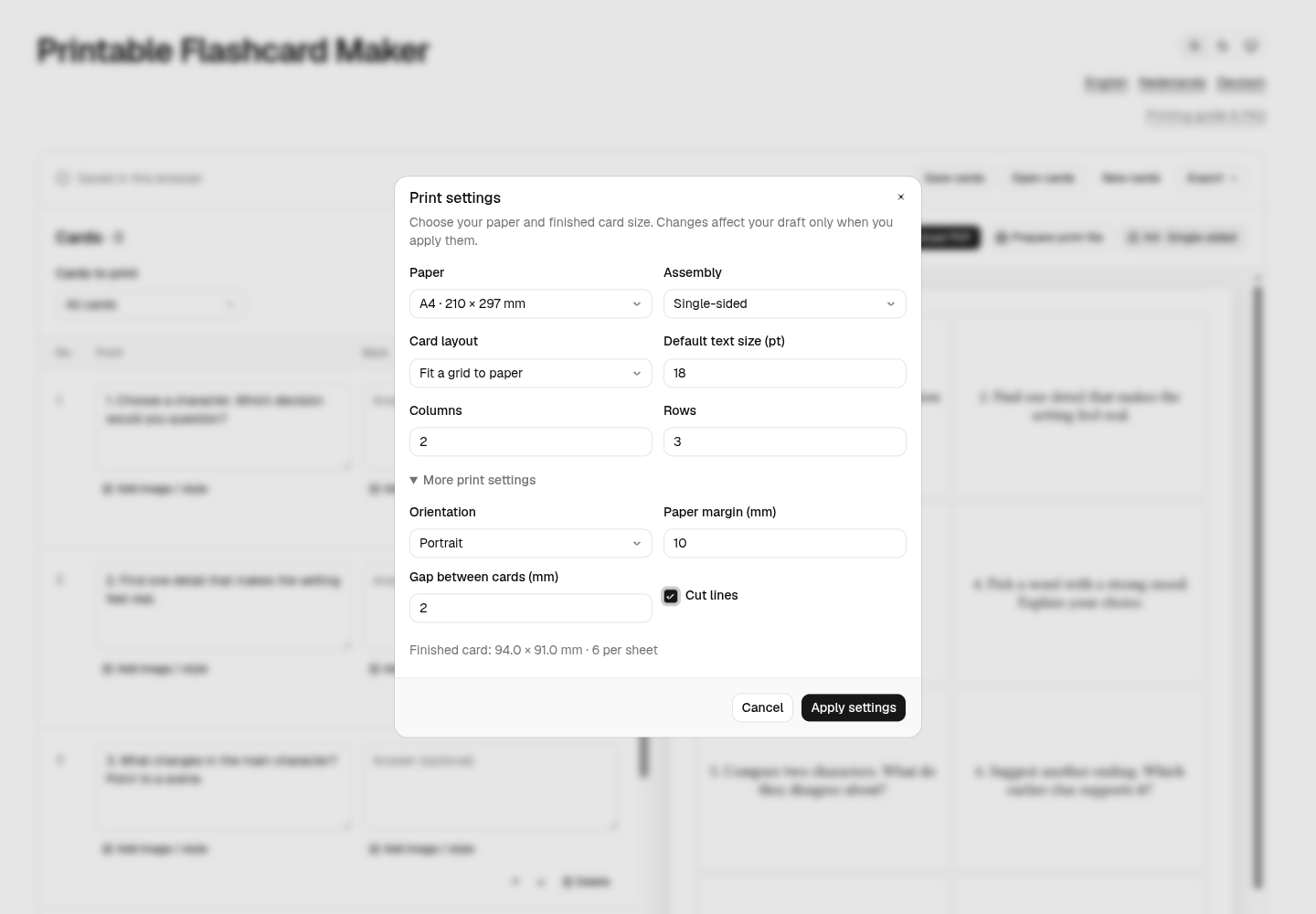
Open Print settings and enter these values for the six-card example. The CSV does not configure them; set them manually.
| Setting | Value |
|---|---|
| Paper | A4 · 210 × 297 mm |
| Orientation | Portrait |
| Assembly | Single-sided |
| Card layout | Fit a grid to paper |
| Columns / Rows | 2 / 3 |
| Default text size (pt) | 18 pt |
| Paper margin | 10 mm |
| Gap between cards | 2 mm |
| Cut lines | On, under More print settings |
Click Apply settings, set Cards to print to All cards, and confirm only this six-card deck is included. The grid gives each card a 94 × 91 mm cell on A4. Check that your own prompts fit comfortably at the selected text size.
Using US Letter paper? This worked sample is A4, not a claim that A4 is the US default. If you have only Letter, choose US Letter · 8½ × 11 in in the maker and regenerate and inspect the layout and PDF for that paper. Do not shrink an A4 file in the print dialog. Letter output is not verified by this example.
5. Inspect, print and use the cards
Use Prepare print file or Download PDF and confirm the file appears before closing the page. Inspect every prompt for missing text or awkward wrapping, check there are six fronts and no extra back page, and match the paper to your intended setup. For A4, choose portrait, one PDF page per sheet side and 100% / Actual size in the print dialog. Print single-sided on ordinary compatible paper first, check that text and cut lines are usable, then cut the cards. Printer margins and paper handling vary; do not assume alignment with perforated stock.
For discussion, students can choose a card in turn, explain a response and point to a supporting detail. Invite another student to agree, challenge or build on the idea. The printed number helps you refer to a prompt; it does not imply a timed six-station rotation or that every card must be completed. You decide which prompts suit the group and whether students need more support.
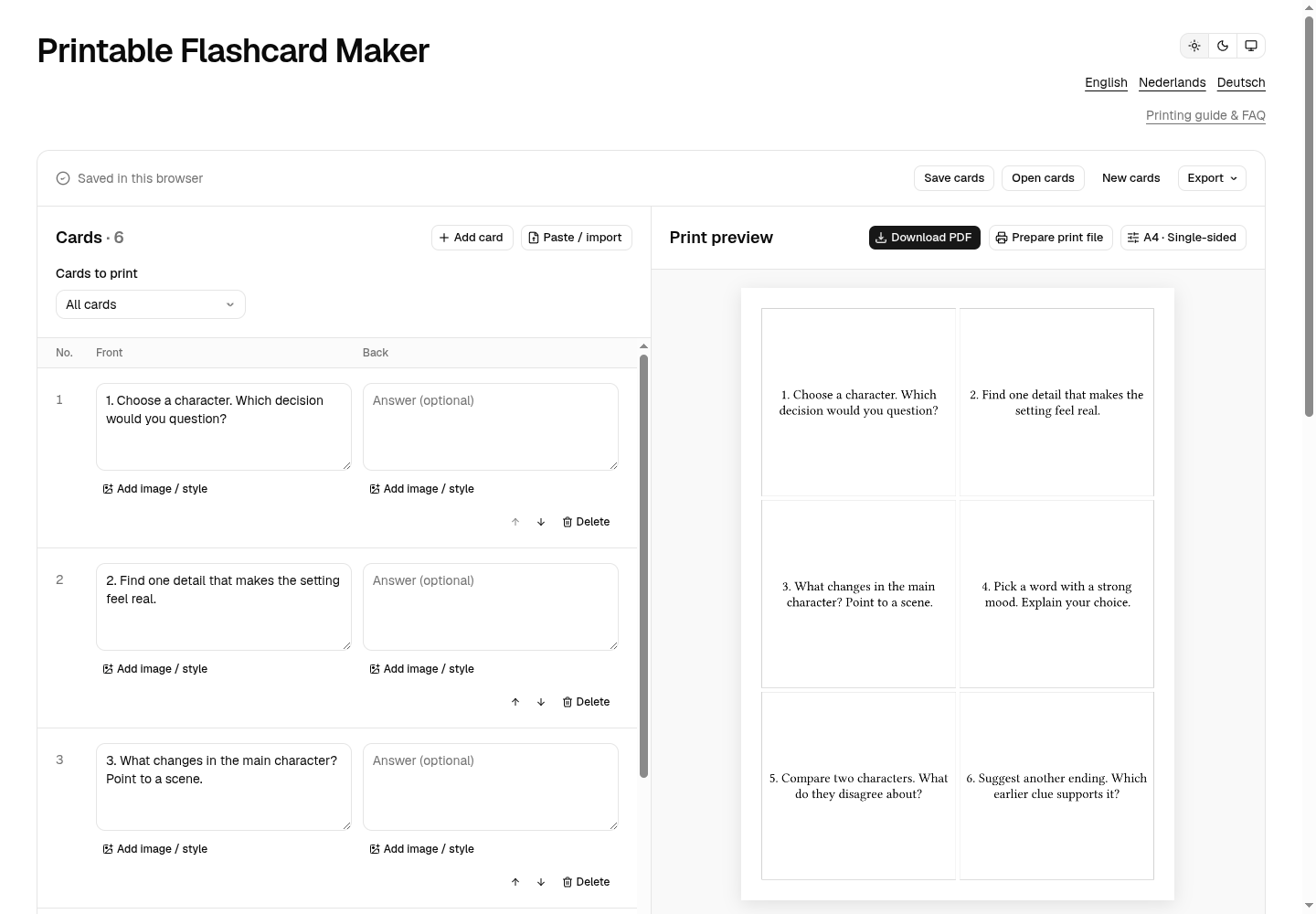
Open the sample A4 PDF · six one-sided classroom task cards. Print at 100% / Actual size on A4, one PDF page per sheet side. A digital PDF does not verify physical printer alignment.
Ready to make your own? Choose a few short prompts your group can discuss without a worksheet, then open the maker.
6. Choose another workflow when needed
Word or PowerPoint may be the better choice if colleagues need to edit the file in those applications, you already have a school template, or you want elaborate borders and positioned text boxes. A familiar editor may already be simplest. Beers's article describes her PowerPoint workflow and links a PPTX template; this guide does not supply either format.
If students need to record answers, self-check with a key, or complete a graded independent task or Scoot circuit, cards alone are not the full activity. Use or prepare materials designed for that workflow. Elite Home Tutoring's task-card generator describes companion recording-sheet and answer-key options; its output was not tested here. A recording sheet can be essential for choice-based or written-response activities.
For paired question-and-answer recall instead of oral discussion, see the double-sided flashcard guide.
7. Questions and troubleshooting
Is this a free editable task-card template?
The example is a CSV with six original prompts that you can edit as text. The maker arranges text as printable cards and exports PDF; it does not export a Word, PowerPoint or Google Slides template. If you need one of those editable formats, start with a template for that application.
Can I print task cards without a recording sheet?
Yes, for an activity where students respond aloud and a teacher facilitates discussion. This cards-only workflow does not create a recording sheet. If students need to submit responses, be graded or self-check at a center, choose or prepare those materials separately.
Why are there seven cards or more than one sheet?
Seven cards usually means the header was imported as a card; check First row is a header (not a card). More cards may mean the sample was appended to an existing deck. Review the entire deck and Cards to print before exporting.
Why is text on the back or split into extra columns?
Set Front column to Column 1 and Back column to Leave blank. For your own CSV, quote a field containing commas or use tab-separated text, then check the mapped preview. The import guide has more detail.