A practical example · October 11, 2026
Make printable speech cue cards from your prepared notes
If your speech is already written, cue cards—or “palm cards” in some regions—can hold the reminders you want to glance at, not a second copy of the whole script. This guide turns six manually selected prompts into single-sided cards on an A4 sheet.
This illustrative practice outline is about introducing a community garden; it is not a real speaker case. The maker lays out text you have already separated into cards. It does not write or summarize a speech, split a long script into prompts, or extract PowerPoint notes. If you are speaking in a competition or other organized event, check its rules for card size and permitted notes.
1. Pick the reminders yourself
Read through your finished speech and choose cues that help you recover the next idea: a name, a statistic, a transition or a question to ask. Keep each one short enough to scan at a glance. Put them in speaking order; add a number to the prompt if you want the sequence visible.
This practice outline uses six prompts about introducing a community garden:
| Order | Prompt |
|---|---|
| 1 | Welcome — why this garden? |
| 2 | The unused corner |
| 3 | Neighbours chose the plan |
| 4 | Three shared benefits |
| 5 | Saturday volunteer sessions |
| 6 | Join us after the talk |
Download the six-prompt CSV example. It has a front,back header and a blank back for each cue. Save or edit the file as UTF-8 if your spreadsheet asks for an encoding.
front,back
1. Welcome — why this garden?,
2. The unused corner,
3. Neighbours chose the plan,
4. Three shared benefits,
5. Saturday volunteer sessions,
6. Join us after the talk,
2. Import and check the six cards
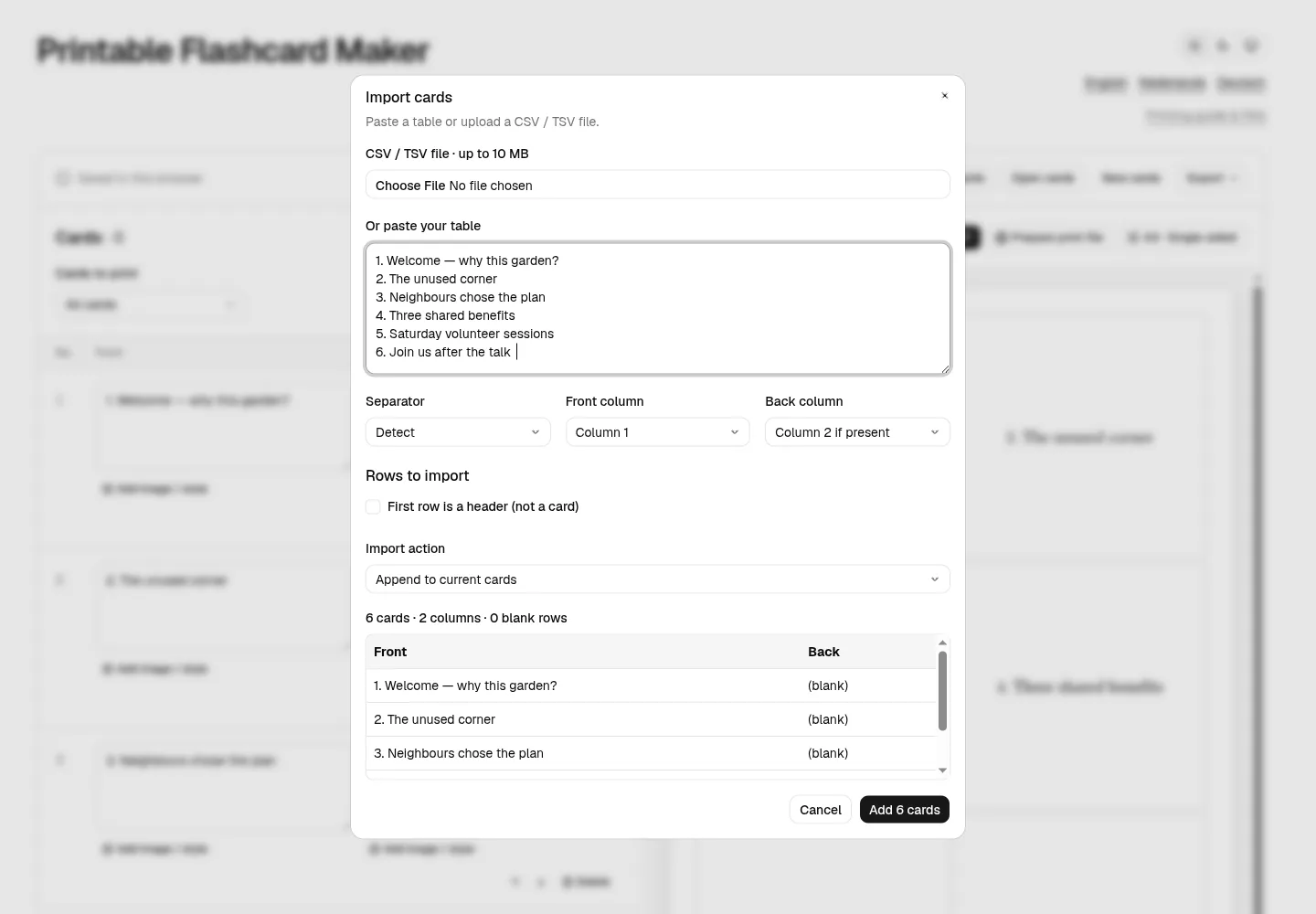
- Open the printable flashcard maker in a desktop browser. If you have a draft you want to keep, use Save cards and confirm the editable ZIP backup has downloaded. Then choose New cards for a separate practice deck and open Paste / import.
- Upload the example under CSV / TSV file, or paste its rows into Or paste your table.
- If needed, set Separator to Comma (CSV), Front column to Column 1, and Back column to Leave blank. Check First row is a header (not a card).
- Confirm the preview has six rows, each prompt under Front and an empty Back. In the empty practice deck, choose Add 6 cards. You can instead append to an existing deck, but its larger card count changes the print output and may span more pages.
Check the count, order and spelling before adding. If a comma inside a prompt splits a field, quote the full CSV field or simplify the wording. CSV/TSV import carries text, not images or formatting.
3. Choose a one-sided A4 grid
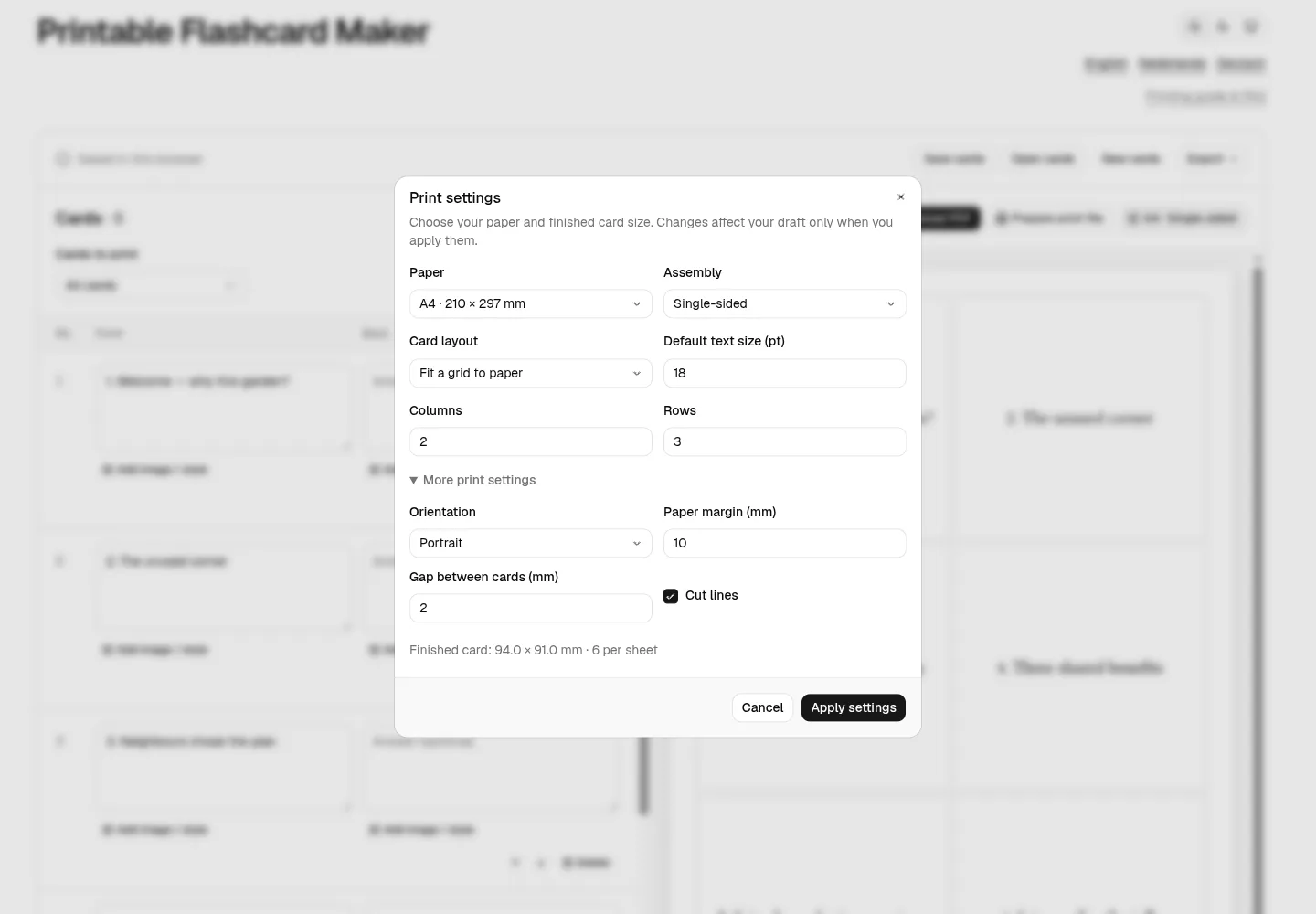
Open Print settings and use this reproducible layout:
| Setting | Value |
|---|---|
| Paper | A4 · 210 × 297 mm |
| Assembly | Single-sided |
| Card layout | Fit a grid to paper |
| Columns / Rows | 2 / 3 |
| Default text size (pt) | 18 pt |
| Orientation | Portrait |
| Paper margin / Gap between cards | 10 mm / 2 mm |
| Cut lines | On, under More print settings |
Click Apply settings. These values give grid cells about 94 × 91 mm before considering card content. That is a grid fitted to A4, not the fixed 3 × 5 in card size. If you need a particular physical size, choose 3 × 5 in · fixed size or Custom fixed size and check how many fit per sheet; six 3 × 5 inch cards do not automatically fit on one A4 page.
Set Default text size (pt) to 18 pt for this example and review the preview. Shorten any cue that feels crowded or change the card area; speech-aware text reflow is not automatic.
4. Prepare, inspect and print the PDF
After applying settings, set Cards to print to All cards, then confirm the editor and print preview show exactly the six sample cards in order. You can use either route: Prepare print file to prepare the print output, or Download PDF to save a PDF directly. Confirm the file appears in your browser’s downloads before closing the page.
In the print dialog, choose A4, portrait and 100% / Actual size rather than Fit to page. Print one page per sheet side. With a single-sided deck there are no backs to flip or align. Try ordinary paper first, check the cut lines and text size, then cut the cards. Printer margins and paper handling vary, so the PDF does not guarantee exact alignment on perforated or pre-cut stock.
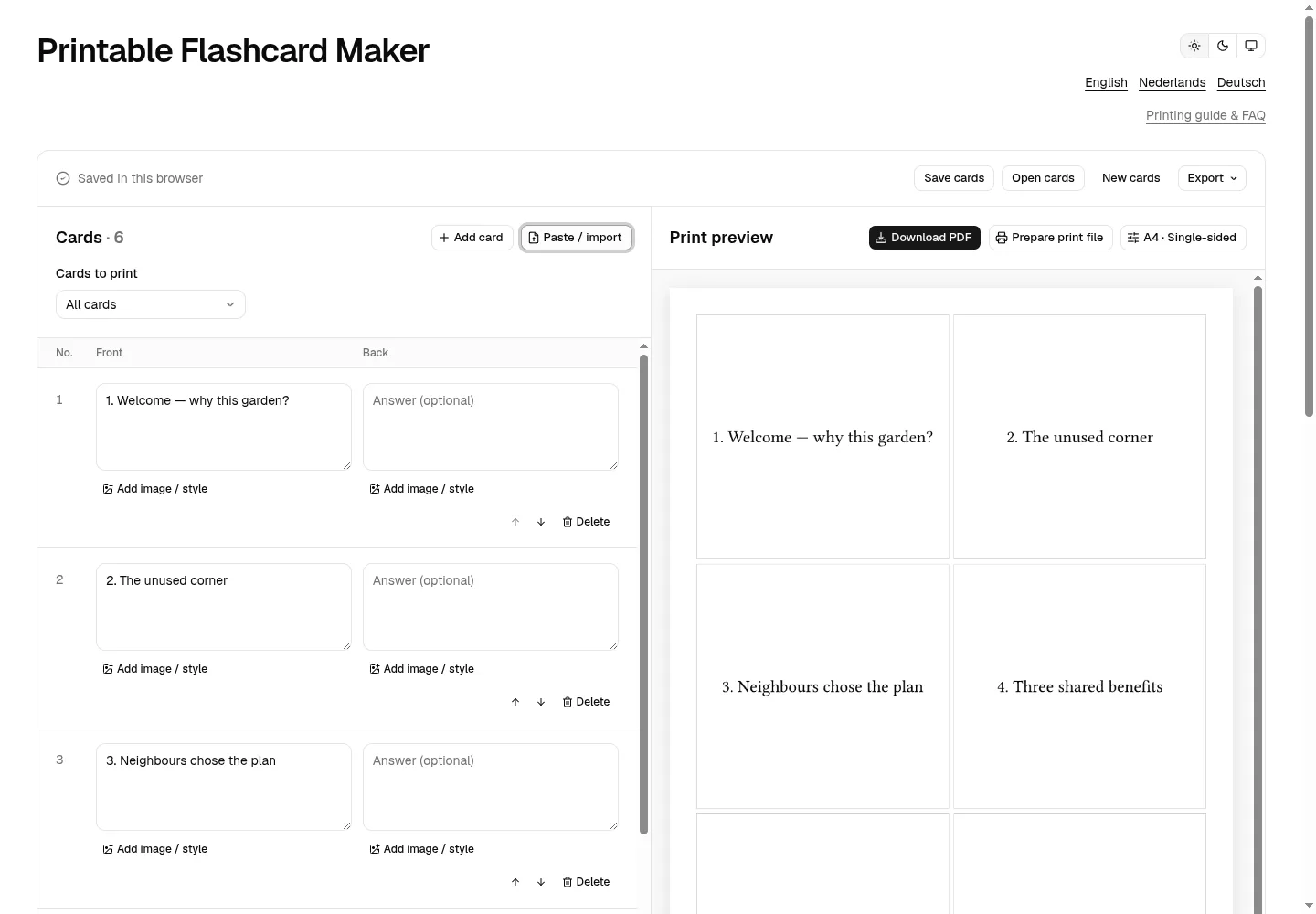
Open the sample A4 PDF · six single-sided speech cue cards. Print at 100% / Actual size on A4, one PDF page per sheet side; this digital sample does not verify physical printer alignment.
Ready to make your own? Open the printable flashcard maker and start with a few cues you have already chosen.
Fix the problem you see
- There are seven cards: Check First row is a header (not a card) and review the preview again.
- Prompts appear under Back: Set Front to Column 1 and Back to Leave blank.
- A prompt splits at a comma: Quote the entire CSV field or simplify it, then check the mapped preview.
- Text is small or crowded: Shorten the cue, increase the card area or adjust Default text size (pt).
- The output has extra cards or pages: Start a separate deck with New cards, or set Cards to print to All cards and account for every card in the deck.
- The print is reduced: Select A4 and 100% / Actual size in the print dialog; turn off Fit to page.
For paired question-and-answer cards, see the double-sided flashcard printing guide. For spreadsheet column mapping and CSV troubleshooting, use the spreadsheet import guide.